Building a Coding Agent (Like Claude Code) from Scratch
A basic implementation, including the agentic loop, tool calls, and context management
Agentic coding tools have exploded in popularity over the past year. At this point, I would wager the vast majority of developers use some combination of Claude Code, OpenCode, Cursor, etc. to write code, do research, or plan feature changes in their codebase.
Although these tools are incredibly useful, I have found myself often treating them like a “black box”, and taking for granted the way they turn raw LLMs into viable agentic tools. As with most technologies, I think it’s hard to fully understand what’s going on unless you implement them yourself, and understanding these tools in depth can help you use them more efficiently, and understand their shortcomings. Therefore, I decided to spend some time creating a coding agent from scratch, modeled after OpenCode and Claude Code. This blog post is going to go over that process, and document what I learned.
Note: since these tools are developing so fast, there is a chance some of what you read here may be out of date. That being said, I try to focus on the core, fundamental concepts of coding agents which will apply to most agentic tools.
So let’s dive in!
The Tech Stack
My primary language of choice is Node.js, so I decided to make a simple CLI tool with that. For simplicity’s sake, I also chose to use the Anthropic SDK instead of offering multiple providers.
For the UI, I had a few choices. I’m sure some of you have heard of the backlash on social media concerning Claude Code’s decision to use Ink, a React-based CLI framework. OpenCode uses OpenTUI, a similar engine but with SolidJS. Since this is just a demo, I will only be making a CLI with Nodejs and raw text output, along with some external libraries for spinners and colors.
Step 1 - The Agentic Loop
At its core, Claude Code is a harness around LLM calls, in a loop. In this loop, your messages are sent to the LLM, which can use “tools” that you expose to it as a way of editing files, reading your codebase, etc. This is called an agentic loop. While in this loop, Claude Code will gather context, take action, and verify results until your prompt is successfully completed.
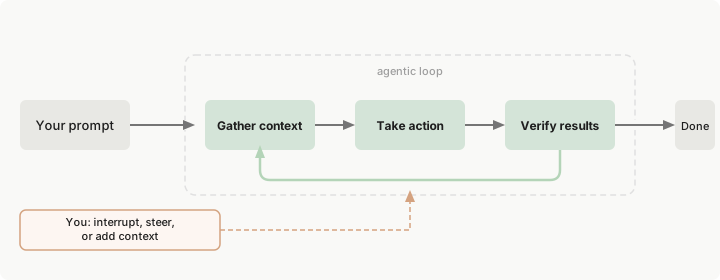
For example: you might be working on a blog site and give a new feature request to Claude, such as “make a change to the codebase so users can leave comments”. Claude will first gather context about your project, by reading files, asking the user clarifying questions, searching for relevant code, etc. Once it has context, it will make changes to the codebase as it sees fit, and then verify its changes by running tests and communicating with the LSP to see if there are any type errors in the code it’s writing.
The implementation of the loop is pretty straightforward in terms of code. We simply make a main while loop that continuously accepts prompts from the user, until they exit out of the application (with ctrl+c). For each prompt, we send this to an LLM along with a list of tools it has access to. We output the response to the user, and use the tools the LLM specifies in order to extract/change information in our codebase, and feed it back to the LLM. This continues until the LLM concludes that it has finished the assignment.
The following is pseudocode that demonstrates this:
messages = []

function chat(user_message):
    messages.append(user_message)

    response = call_llm(messages, TOOLS)
    messages.append(response)

    // agentic loop
    while response.wants_to_use_tools:
        for each tool_call in response.tool_calls:
            result = execute_tool(tool_call.name, tool_call.input)
            messages.append(result)

        response = call_llm(messages, TOOLS)
        messages.append(response)

    print(response.text)

while true:
    user_input = prompt()
    chat(user_input)
So this raises the question, what are tools exactly?
Tools are pieces of functionality that the LLM can invoke to accomplish the task we prompted it to do. Without these tools, the LLM is completely incapable and can only output text; the tools are what allow it to edit files, read your codebase, search the web, check the language server for errors, etc.
The Cursor documentation actually has a great analogy:
Imagine you are helping a friend of yours cook dinner, but you are talking to him over the phone. Naturally, you might need some more information. You might ask him to take a picture of the food so you know whether it’s done cooking, you might ask him to put a meat thermometer in it to check the temperature, or tell him to turn the heat down, etc. These are the equivalents of “tool calling” - essentially getting outside information or asking something you don’t have access to by yourself.
These tools span many different capabilities, including reading files, editing code, searching the codebase with regex, observing type errors, searching the web, etc.
In the code, this is actually quite easy to implement. The Anthropic SDK allows us to attach a list of tools in each API call.
  const stream = client.messages.stream({
    model: "claude-sonnet-4-5-20250929",
    max_tokens: 4096,
    system: SYSTEM_PROMPT,
    messages,
    tools, // this is a list of our tools we can provide to Claude
  });
We can represent these with the following data type, I’ll give an example for reading a file:
  {
    name: "read_file",
    description:
      "Read the contents of a file at the given path. Returns the file content as a string.",
    input_schema: {
      type: "object" as const,
      properties: {
        path: {
          type: "string",
          description: "The path to the file to read",
        },
      },
      required: ["path"],
    },
  }
In other words, it’s basically a name of what this tool is, a description of what it does, and the arguments we need in order to run it.
When the API call to Anthropic returns, it gives us a field called “stop_reason”. This explains why the model is not responding any more. If this field is of the value “tool_use”, that means the model is stopping because it needs access to information it can only get from tools. If this is the case, we can check the response of the API call, which will have a list of tools it wants to call. We take this list of tools along with the arguments provided by Claude, and execute them locally (for example, running “ls” in our directory or creating a new file). After the tools are executed, we take the output of the tools, and add them to a running array of messages we feed to the LLM.
Since each API call to Claude is separate, Claude doesn’t have any memory of our previous chats. Therefore, to give Claude context for what we have been talking about, we need to attach the output from all of our previous messages (we’ll explore why this is problematic in the next section).
This includes the output of our tools, which makes sense. If Claude asks to use the tool for reading a file, it needs to know the output of this in order to plan its next move.
When the stop_reason is “end_turn”, this means that the prompt we provided to Claude has been completed. We are done with our task, and then we can enter a new prompt for the LLM.
So let’s actually try this out! I have a super simple task I will ask of this coding agent, to demonstrate how this agentic loop works.
On starting up the tool, there is a small piece of ASCII art showing the name of the project (Mini Coder). We are going to try and change the color of the “Mini Coder” from green to blue, simple enough.
And it works!
We can see all of the tool calls that happen as the tool tries to make the change. First it uses grep multiple times with different patterns like “Mini Coder”, “mini coder”, and “green”. However, the tool is not successful, since the header is represented in ASCII and with the color green as a hex code.
So, it instead resorts to the “ls” command, first using it in the root, and then in src. Once it finds the index.ts file, it uses the “read file” tool in order to read it, and then calls the “edit file” tool in order to make the change. The full list of tool calls the CLI made is listed below (with abridged arguments for brevity).
TOOL CALL: grep(pattern=mini coder, file_pattern=**/*)
TOOL CALL: grep(pattern=Mini Coder, file_pattern=**/*)
TOOL CALL: grep(pattern=green, file_pattern=**/*.{css,html,js,jsx,tsx,ts})
TOOL CALL: ls(path=.)
TOOL CALL: ls(path=src)
TOOL CALL: read_file(path=src/index.ts)
TOOL CALL: edit_file(path=src/index.ts, old_string=console.log(chalk.hex('#4CA..., new_string=console.log(chalk.hex('#219...)
This is 90% of the core of Claude Code. This is the interior engine that allows the agent to access our code, explore our projects, and ship features. All of the other cutting edge stuff you’ve probably heard of (MCPs, subagents, skills, CLAUDE.md hierarchies, etc.) is all built on top of this deceptively powerful little loop. I remember first hearing about tool calls in the OpenAI API back in 2023, and thinking nothing of it at the time. But now, this is the backbone of some of the most widely used agentic developer tools in the world. Pretty neat!
Step 2 - Context Management
With that in mind though, this loop is quite brittle. Some of it is due to error handling and validation that is not necessary to implement now, but there’s also an inevitable flaw in our agent. Looking back at the loop, what happens if the user just… keeps using it?
Well, after a while the messages array is going to get polluted with user messages, LLM outputs, and the output of tool calls. Keep in mind, this is the input we give the LLM so it has context for our past actions. This is an issue since LLMs have limited context windows. The recent Sonnet family of LLMs from Anthropic supports a context window of 1 million tokens. We might not hit that for a while, but nonetheless, it is good practice to conserve the context window. Otherwise, the LLM has to deal with a bunch of irrelevant past messages, which will increase token costs on our end and make the LLM less efficient in responding to our newer prompts.
There’s a few different ways of handling this. The most obvious one is just to start a new running instance of our CLI, which will have completely new context. Nonetheless, we still have to handle this in our CLI, otherwise the performance will degrade and the tool will break once it hits 1 million tokens in the messages array, because Anthropic’s API will see we are exceeding the context window and return an error.
Therefore, we can do what Claude Code does. We can automatically compact the context when it gets close to the 1 million token mark. We can also provide a command for users to do this manually. In Claude Code, this is handled by “slash commands”, which are just commands prepended by a ”/” that tell CC to do different things. One of them is /compact, but there are many more, including /exit, /clear, etc.
We will implement this in our own tool. First automatically. At the end of our tool call loop with the LLM, after it’s successfully completed the user’s request, we can add this code:
  if (lastTokenCount > TOKEN_LIMIT) {
    console.log('compacting ', lastTokenCount, TOKEN_LIMIT)
    await compact();
  }
Once the token count that we have specified is exceeded, our tool calls a compact function. This compact function will just take all of our previous messages (which includes tool invocations, user messages, and LLM output), and make a call to our LLM to summarize it, and then add a new message in our messages array with the summary.
Let’s see how this works. I’m going to ask the agent to do something very simple, and create a readme for the project.
I added token logging so it shows the number of tokens after each action
I'll help you create a brief README for this project. Let me first explore the project structure to understand what it's about.
[Total tokens: 1445]

[Listing: /Users/christophercoyne/Projects/claude-code-clone]

[Total tokens: 1957]

[Reading: /Users/christophercoyne/Projects/claude-code-clone/package.json]

[Listing: /Users/christophercoyne/Projects/claude-code-clone/src]

[Total tokens: 2665]

[Reading: /Users/christophercoyne/Projects/claude-code-clone/src/index.ts]
Now I'll create a brief README for this project:
[Total tokens: 3701]

[Writing: /Users/christophercoyne/Projects/claude-code-clone/README.md]
Done! I've created a brief README.md that covers the essentials:
- Project name and basic description
- Setup instructions
- Usage commands
- Available CLI commands
- A note that it's under active development

The README is intentionally concise and can easily be expanded in the future as the project evolves.
[Total tokens: 3807]
After hitting the “/compact” command, this token count in our messages area is reduced down to 1720 tokens.
In a non-toy example, we would probably want to do this after ~500k tokens (to keep our usage of the max context window of a million tokens fairly low). But this demonstrates basically how the context compacting can work.
Our method of context compacting is fairly naive, as well. A one message summary doesn’t necessarily capture a lot of the nuance of our past conversation. OpenCode has a clever approach. The last 2 user inputs and tool calls are fully preserved, and everything else is compacted. OpenCode takes the old tool calls in the messages array, and replaces each tool call output with [Old tool result content cleared]. It does this after each successful agent call in a process called “pruning”.
This makes sense since the tool calls are often the bulkiest part of the context. Imagine if an LLM reads a very long file in our codebase. This is going to be the output of a tool call, which itself could be quite close to the context window! OpenCode also summarizes user and LLM messages in a similar fashion to what we implemented.
Step 3 - Extending our Agent
Although we’ve covered the basics of Claude Code (and coding agents in general), there’s still a lot left that can be done. MCPs, skills, subagents, etc. - These are features you add to customize what Claude knows, connect it to external services, and automate workflows.
In other words, these offer additional functionality on top of what we already have, but are not central to the agent itself. Let’s explore some of these and how to implement them.
CLAUDE.md
Carrying through with that thread of context management from the last section, the CLAUDE.md (or AGENTS.md if you’re coming from OpenCode) is an incredibly useful way to provide global context for the agent. Keep in mind, whenever you send a new prompt to our coding agent, it has to take all of the past messages from your past interactions, and send them to the API. This is all based on API calls to a stateless LLM, meaning once you close a session, the LLM itself doesn’t know anything about your project. In a new session, if you ask it to do something, it has to figure out your tech stack and find examples in your codebase again from scratch.
The CLAUDE.md file is there so you don’t have to do this. You can have all of the relevant information about your project there, so you leave out as little guesswork as possible when you start a new session with the LLM. This CLAUDE.md file gets fed to the LLM on every message as part of the system prompt.
In the Claude Code community, there is often uncertainty in terms of how to handle this file. Generally, people include coding conventions, documentation, useful commands, and past mistakes the agent has made. Boris Cherny (creator of CC) says his team collaboratively maintains a single CLAUDE.md file which is iterated upon multiple times a week, and tracked in Git. Some keep the CLAUDE.md lean, opting to include documentation for the agent in separate spec files with a reference to them in the CLAUDE.md.
For this project, I will specify our base context file as CODER.md, and place it in a .coder directory. Upon starting the CLI, the tool will read in the markdown file, and automatically attach it in the system prompt field of the api call to the LLM. I’m keeping it very simple, and just including the stack and project structure, which you can see below:
# Mini Coder

An agentic CLI coding assistant built with TypeScript and the Anthropic SDK.

## Stack

- TypeScript with ESM modules
- Anthropic Claude API (claude-sonnet-4-5-20250929)
- Runs via `tsx` (`npm start` or `npm run dev`)

## Project Structure

- `src/index.ts` — REPL loop and slash command handling
- `src/messageLLM.ts` — Chat function, streaming, agentic tool loop, auto-compaction
- `src/tools.ts` — Tool definitions for the Claude API
- `src/processToolCall.ts` — Tool call dispatcher
- `src/tools/` — Individual tool implementations (read, write, edit, glob, grep, ls, bash)
- `src/compactMessages.ts` — Conversation summarization for context management
Skills
Skills are a relatively new feature of Claude Code and other agentic coding tools. However, the concept is quite straightforward. They are customizable sets of instructions that can be given to your agent to extend its abilities. For example, you might spend some time crafting a very detailed prompt telling Claude exactly how to audit your site for potential issues. Instead of copy and pasting this every time you need it, you can use a skill that you can run on demand whenever you want, to audit your site using the same prompt. In Claude Code, skills can either be invoked with a slash command, or automatically if Claude thinks it is appropriate.
There’s a website called https://skills.sh/ where you can download skills as needed. Be careful though, because some of these can be malicious! I also generally think it makes more sense to create your own skills that work for your specific workflow, as opposed to taking them from other people.
We can give our Mini Coder access to skills by placing them in the same directory as the CODER.md file.
We’ll start with an example skill that Anthropic lists in its documentation: explain-code. This skill will explain parts of your codebase in depth following a specific structure, including diagrams.
The first thing is to allow the user to trigger this manually. This is pretty simple, we extend the same code we used to handle the /compact command, to also handle skills. On session start up of the Mini Coder, we read in all of the skills into an array. If the user inputs a ”/” followed by a skill name, we simply send the contents of the skill over to the LLM, like we would with any other prompt.
When we enter this command, let’s see what happens:
The skill is invoked, and we have a nice diagram of our agent loop:
┌─────────────────────────────────────────────────────────────┐
│                     USER SENDS MESSAGE                       │
│              "Read config.json and fix the bug"              │
└────────────────────────┬────────────────────────────────────┘
                         │
                         ▼
┌─────────────────────────────────────────────────────────────┐
│              CLAUDE RESPONDS (First Time)                    │
│  "Let me read that file for you..."                         │
│  [stop_reason: "tool_use"]                                  │
│  [wants to call: read_file("config.json")]                  │
└────────────────────────┬────────────────────────────────────┘
                         │
                         ▼
                  ┌──────────────┐
                  │  WHILE LOOP  │ ◄──────┐
                  │   ENTERS     │        │
                  └──────┬───────┘        │
                         │                │
                         ▼                │
         ┌───────────────────────────┐   │
         │  Execute Tool Call(s)     │   │
         │  read_file returns:       │   │
         │  "{ port: 3000 }"        │   │
         └───────────┬───────────────┘   │
                     │                   │
                     ▼                   │
         ┌───────────────────────────┐   │
         │  Send Tool Results Back   │   │
         │  as "user" message        │   │
         └───────────┬───────────────┘   │
                     │                   │
                     ▼                   │
         ┌───────────────────────────┐   │
         │  CLAUDE RESPONDS AGAIN    │   │
         │  "I see the issue! The    │   │
         │   port should be 8080"    │   │
         │  [wants: write_file(...)] │   │
         └───────────┬───────────────┘   │
                     │                   │
                     ▼                   │
              [stop_reason:              │
               "tool_use"?] ─────YES─────┘
                     │
                     NO
                     │
                     ▼
         ┌───────────────────────────┐
         │   LOOP EXITS              │
         │   Final response shown    │
         │   "Done! Bug fixed."      │
         └───────────────────────────┘
Skills can also be triggered automatically if the LLM thinks it’s necessary. This works by adding a new tool specifically for skills. This has a list of all of the skill names and their descriptions. When Claude invokes this tool (use_skill) with the name of a skill, we simply send the contents of that skill file to the LLM.
  const useSkillTool: Anthropic.Tool = {
    name: "use_skill",
    description: `Invoke a skill to get specialized instructions for a task. Available skills:\n\n${skillList}\n\nCall this tool with the skill name to receive its instructions, then follow them.`,
    input_schema: {
      type: "object" as const,
      properties: {
        skill_name: {
          type: "string",
          description: "The name of the skill to invoke",
        },
      },
      required: ["skill_name"],
    },
  };
Skills are a pretty straightforward concept, and if you ask me, are sort of a rehash of the trend of sharing optimized prompts that you saw in the early days of LLM usage. They are just these prepackaged prompts that the LLM either uses at will, or that you can explicitly ask it to use.
Skills are often not as effective as a CLAUDE.md file though, as detailed in a study by Vercel. They found that the LLM would often fail to call skills automatically, even if they were relevant for a particular task.
Subagents
Lastly, we will be implementing subagents in our mini coding agent. Subagents are specialized versions of the agentic coder we have already written, that can aid in certain longer running tasks. Claude Code’s built in subagents include the explore subagent, which is used to explore the codebase and help the coding agent analyze the code without making any changes. There is also a plan subagent, which is used to help the coding agent make a plan for feature changes. If you have been using the “plan mode” in Claude Code or other tools (which you probably should be), then you have already seen this subagent before, which is spawned when inside of this mode.
Subagents are just different instances of this same agentic loop that we currently have, that report back their findings to the main agentic loop. They have access to their own messages array, specialized system prompt, and tool calling abilities. That being said, these might be different from the parent agent. For example, the explore subagent won’t have access to “write” tools, because its sole purpose is to explore the codebase without changing things, and give its findings to the main agent.
So… this seems a little unnecessary, right? Why use subagents when you could have tool calls for the exact same thing? We already have tool calls that allow the parent agent to read files and grep our codebase. Why would we need the subagent?
The subagents help in terms of preserving context, limiting tool usage, and controlling costs. If the parent agent decides it needs to explore the codebase in order to implement a feature, it doesn’t need to have access to write tools, and it shouldn’t pollute its context with a bunch of tool calls. In other words, it makes sense to keep different tasks contained in their own agentic loops, and when the main agent decides, it can spawn these at will.
So how are subagents implemented? It’s fairly simple, and similar to the skills. The answer is tool calling. We just need to create a new tool which we call task (modeled after Claude Code’s tool of the same name), and this task tool has a list of different agents the main agent can spawn.
In this case though, I am only going to implement the “explore” subagent. All I need to do is add the new task tool definition to our tools array we provide to the LLM:
  {
    name: "task",
    description:
      "Spawn an explore subagent to search and read files. Use this for researching the codebase, finding files, understanding code structure, or answering questions that require reading multiple files. The subagent has read-only access (read_file, glob, grep, ls) and returns its findings as text.",
    input_schema: {
      type: "object" as const,
      properties: {
        prompt: {
          type: "string",
          description: "The task or question for the explore agent to investigate",
        },
      },
      required: ["prompt"],
    },
  },
Then, this subagent enters the same loop as our main agent, but only has access to these “explore tools” which include “read_file”, “glob”, “grep”, and “ls”.
Once the subagent is done exploring the codebase, it will return its findings to the main agent, which can do with them as it pleases.
Let’s test this out. I added extra logging to determine when the subagent was spawned, and which tool calls were made with the subagent.
Let’s ask it for the best strategy to implement a “hooks” feature in this codebase, similar to the one Claude Code has.
Since this is a longer feature where the agentic coder needs more context, it decides to spawn a subagent in order to do research.
I'll analyze the current codebase to understand its structure, then propose a strategy for implementing hooks similar to Claude Code's system.
[Total tokens: 2018]

[Explore agent started]

[SUBAGENT Listing: /Users/christophercoyne/Projects/claude-code-clone]

[SUBAGENT Glob: **/*.ts in /Users/christophercoyne/Projects/claude-code-clone]

[SUBAGENT Listing: /Users/christophercoyne/Projects/claude-code-clone/src]

...many more tool calls below
The subagent then explores our codebase and returns with its insights, which our main agent can use to make a plan. When testing out the CLI, I noticed it uses the explore agent a lot! I think this is because my documentation in the project is still pretty sparse, and therefore the agent needs to read more files to get a good sense of my codebase. Probably also because I am testing it with very vague prompts, not telling it exactly what file to look in. When I tell it which file to make changes in, I noticed it doesn’t invoke the explore subagent, and instead just reads the file.
I think this underlines the importance of providing context to the agent. With better context and being more specific in prompts, you can save on extra tool calls and subagents that cost more money in tokens and spend more time executing.
And there you have it. A basic coding agent that implements many of the fundamentals you might find in Claude Code or OpenCode.
Conclusion
Well, that was a fair amount! Claude Code certainly has a lot of different features… and there’s still a lot we didn’t cover. For example: MCP integration, permissions, hooks, etc. But this is the basic engine that powers most coding agents: a loop that takes user input and provides it to base LLMs underneath, along with a variety of extensions (tools, skills, subagents, global markdown file, etc.) in order to orchestrate the LLMs and manage context. I’m surprised by how easy it was to get something adequate up and running.
This was a fun project, and I recommend anyone who frequently uses coding agents to do something similar, as it gives you real insight into how these tools work.
You can check out the project here.